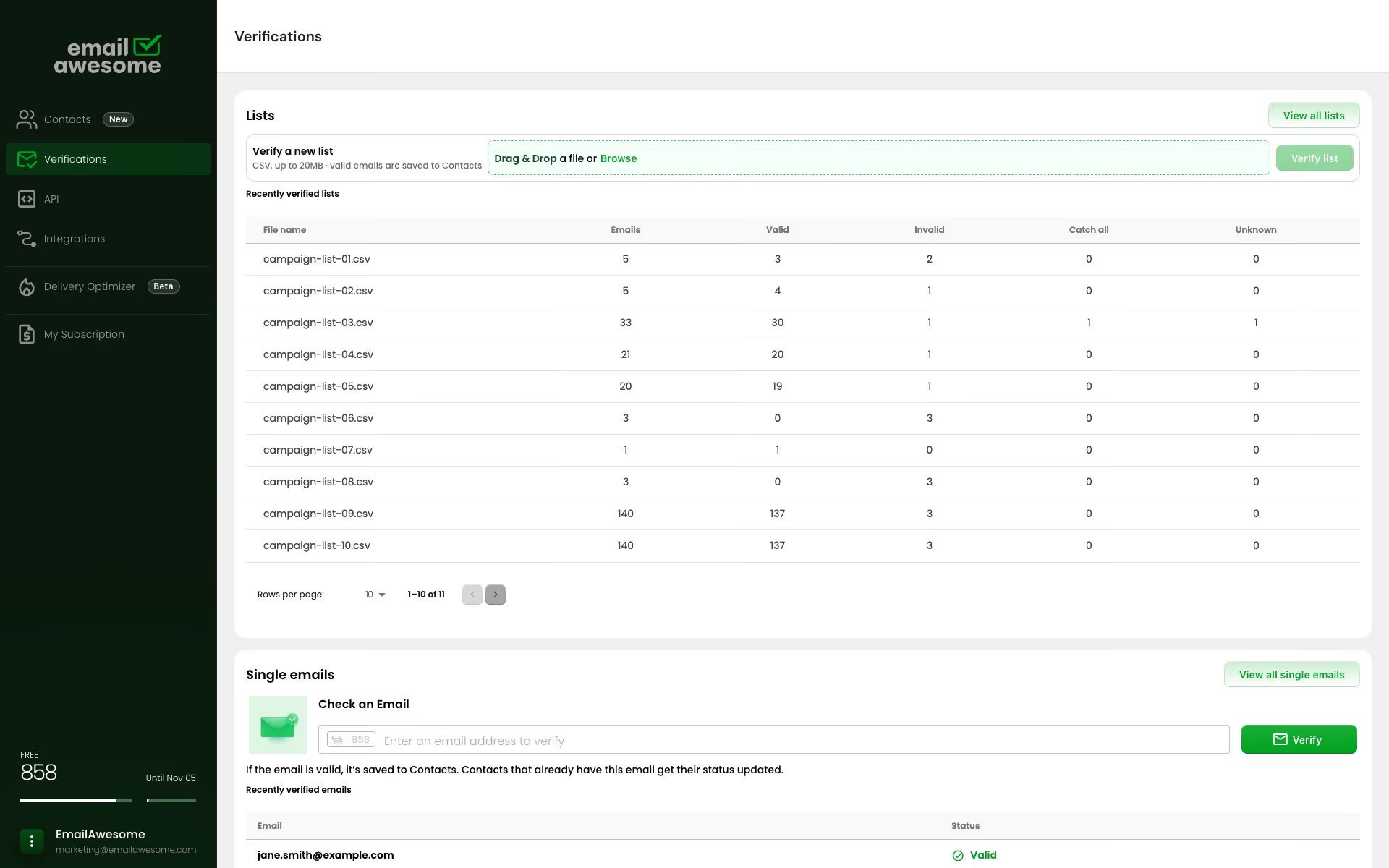
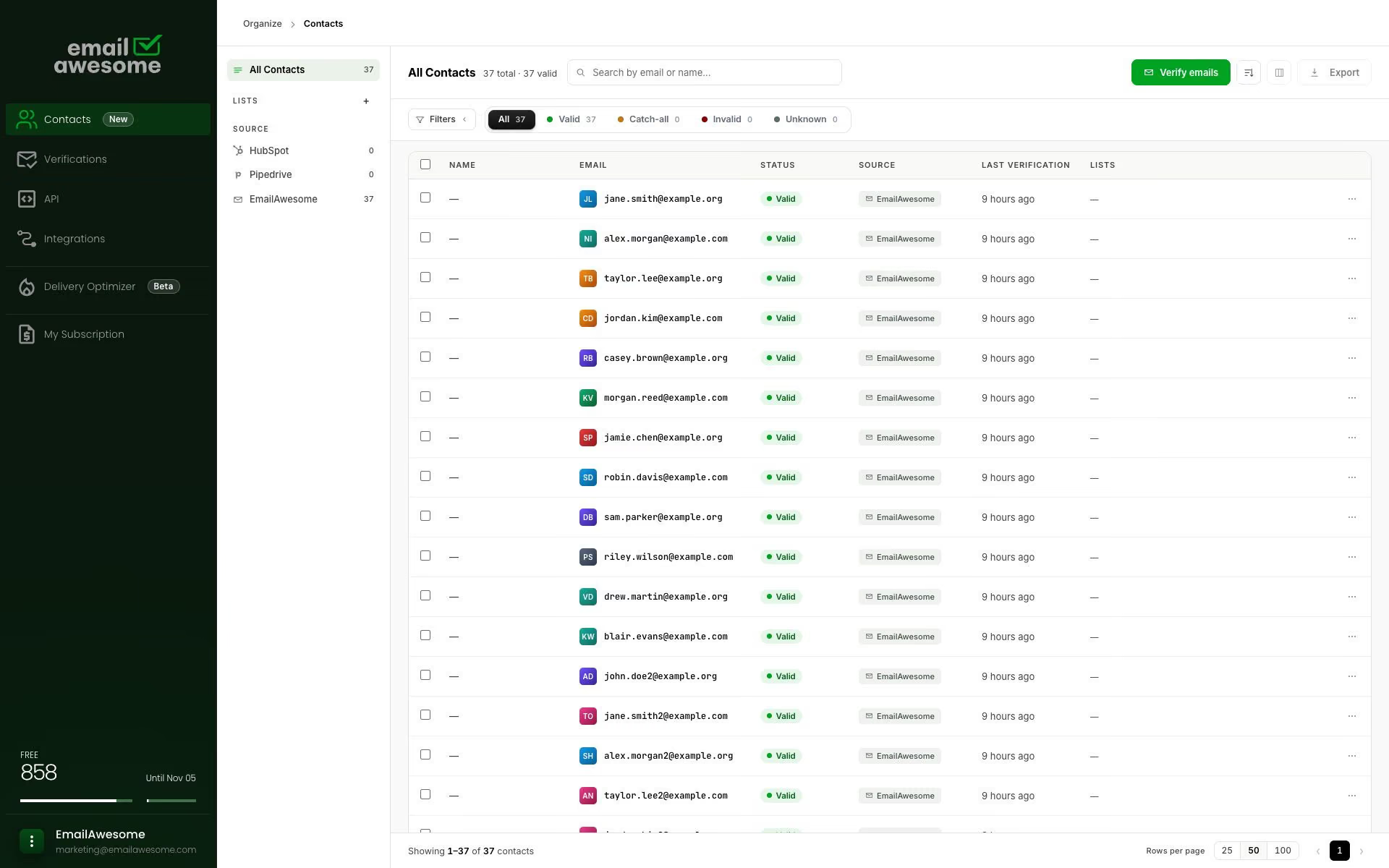

Bulk email verification.
Better contact data.
Verify a single email or a bulk list.
Keep verified contacts organized and build better contact data in one place.
Ask AI about EmailAwesome


© 2026 EmailAwesome. All rights reserved.

Data Enrichment
Add available names, roles, company details, LinkedIn profiles and phone numbers to your contacts. Choose the details you need and review the credit estimate before confirming. Available on Basic and above.
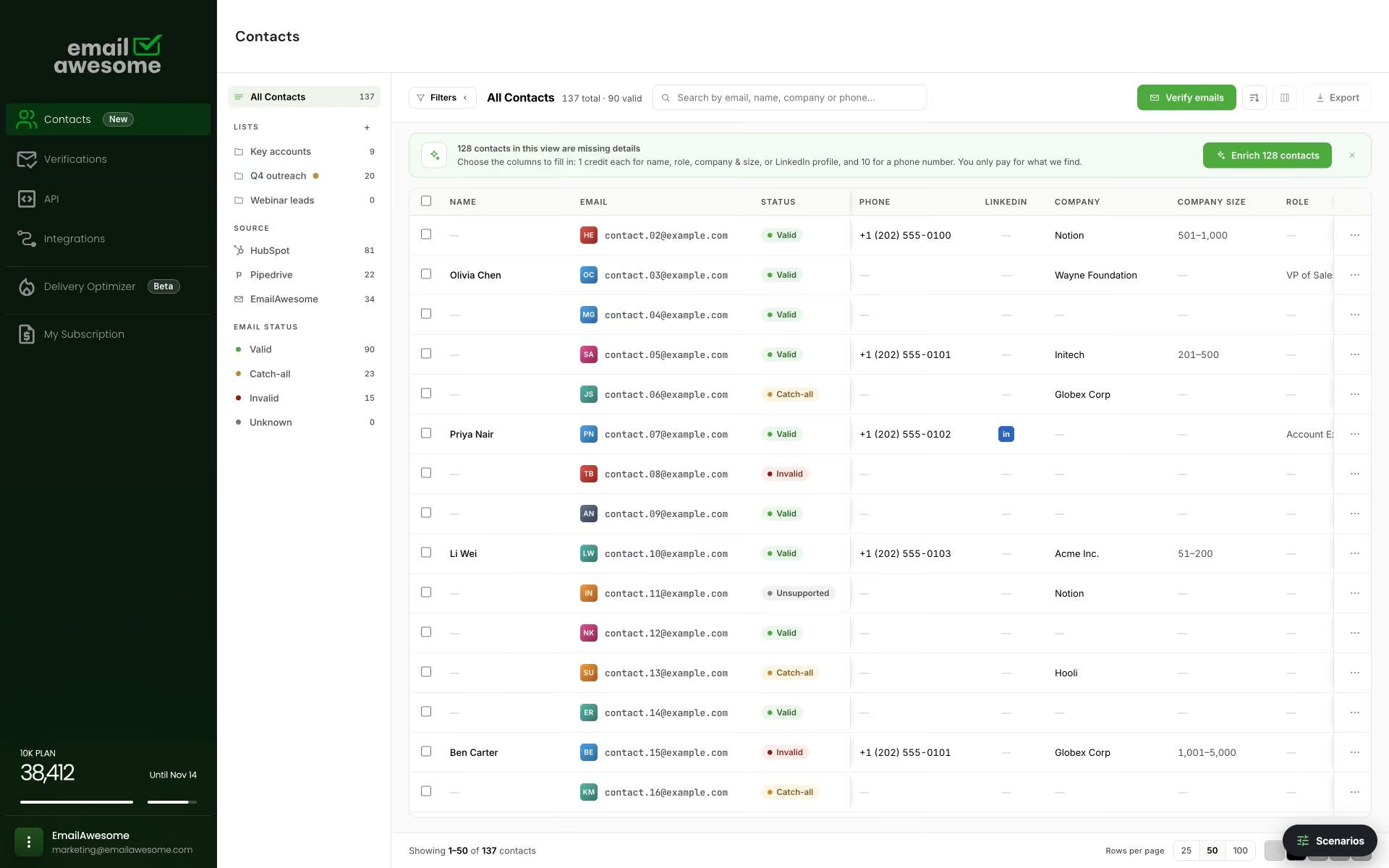
Illustrative product view. Available details and credit estimates are shown in your account.
Add an available name and job role to understand who a contact is and how they relate to your next conversation.
Bring available company information and company size into the record so you can review business context alongside the email.
Review available LinkedIn profiles and phone numbers. Availability can differ between contacts and between fields.
Review a contact’s missing details and choose the information relevant to your next task, such as a name or role.
Keep a campaign or project together. Select the details you need across your list, then review the credit estimate.
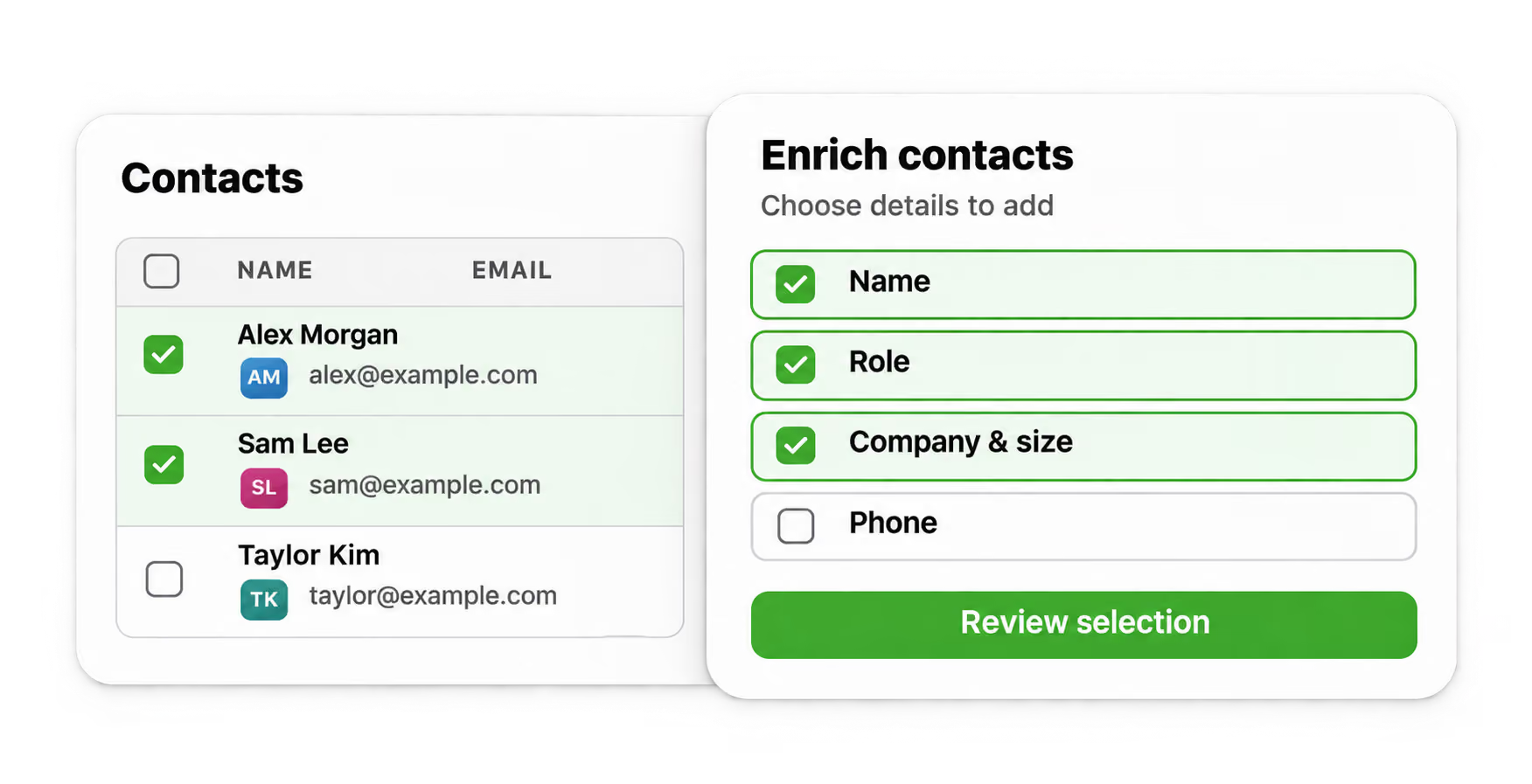
Open Contacts and select a contact or list. Review the missing fields and choose the information you need for that task.
Check the selected contacts, fields and credit estimate in your account. Confirm only the selection you want to enrich.
After confirming, review the details added to the contact record. Some fields may remain empty; keep the email verification status separate from the enriched information.
Enrichment adds context to a contact record. Review the details returned and any fields that remain empty before deciding your next step.
alex@example.com
Name
Not available
Role
Not available
Company
Not available
Phone
Not available
An email address with missing contact details.
alex@example.com
Name
Alex Morgan
Role
Operations Manager
Company
Example Company
Phone
Not available
More context where available. Email verification remains a separate result.
Illustrative example only. These are fictional details, not a product result or a promise of coverage.
Contact enrichment is available on the Basic plan and above. On the Free plan, Contacts shows an option to unlock enrichment.
Review the fields, selected contacts and credit estimate shown in your account before confirming. Use the current in-app estimate for your selection.
A contact may have some details available and others missing. Review the information available for each record; enrichment does not guarantee that every field will be filled.
FAQs
Can I choose which contact details to enrich?
How do I know how many credits enrichment needs?
Will every detail always be found?
Does enrichment replace email verification?
Bulk email verification.
Better contact data.
Verify a single email or a bulk list.
Keep verified contacts organized and build better contact data in one place.
Ask AI about EmailAwesome